Introduction
Circular geofences work for simple proximity checks, but real-world locations rarely fit a circle. Polygon geofences let teams draw boundaries that match actual footprints: warehouses with irregular shapes, port terminals with complex perimeters, or service territories that follow neighborhood streets rather than a radius.
Creating a polygon geofence looks straightforward, but operational results depend heavily on how boundaries are drawn, which parameters are configured, and which definition method is used. Per the IETF RFC 7946 standard, small errors at the definition stage — unclosed polygons, reversed coordinate order, insufficient vertices around curves — produce missed triggers, false alerts, and compliance gaps in production.
The global geofencing market is projected to grow from $3.22 billion in 2025 to $11.85 billion by 2034, with transportation and logistics leading adoption. Getting the geometry right from the start matters more as these systems scale.
This guide walks through the technical steps and parameters required to define accurate, production-ready polygon geofences.
TL;DR
- Polygon geofences use ordered coordinate arrays to create custom-shaped boundaries, offering more precise boundary control than circular geofences
- Define them manually by clicking on a map, programmatically via API with GeoJSON arrays, or in bulk via CSV import
- Use at least 6 decimal places of coordinate precision, a 5–20 meter buffer, and always close the polygon back to its first vertex
- Higher vertex counts improve shape fidelity — but increase processing overhead
- Test entry and exit triggers in staging before production activation
How to Define Geofence Polygons Around a Location
Step 1: Identify the Target Location and Define the Purpose
Determine the exact physical location—warehouse, delivery zone, job site, or service territory. Clarify whether the geofence will be used for entry/exit alerts, dwell-time tracking, routing constraints, or compliance reporting, since purpose dictates the required boundary precision.
Use satellite or hybrid map view to visually inspect the site boundary. Note irregular shapes like L-shaped warehouses, port terminals, or campus perimeters that circular geofences cannot accurately represent. As RAM Tracking notes, polygon geofences are essential for sites where precision boundaries determine billing accuracy, regulatory compliance, or customer satisfaction.
Step 2: Choose Your Polygon Definition Method
Three approaches exist for polygon creation:
Manual drawing:
- Click sequentially around the site perimeter on a map-based tool
- Best for one-off zones where visual accuracy is sufficient
- Requires basic map navigation skills and understanding of polygon closure
Programmatic/API method:
- Supply an ordered array of lat/lng coordinate pairs to a geofencing API
- Preferred for teams building geofences at scale or requiring version-controlled boundaries
- Example: NextBillion.ai's Geofencing API supports polygon definition via GeoJSON coordinate arrays, enabling programmatic creation and management of zones across fleets and delivery networks
- Requires familiarity with GeoJSON polygon structure and coordinate order conventions
Bulk import method:
- Prepare a CSV or spreadsheet where each polygon is a row with zone name and sequential [lat, lng] point pairs
- Import into your telematics or geofencing platform
- Platforms like Geotab support bulk zone imports via Excel or CSV templates
- Suited for setting up dozens or hundreds of zones simultaneously
Step 3: Place Vertices and Trace the Polygon Boundary
Starting from any edge point, place vertices sequentially around the perimeter—following the actual physical boundary of the location.
Return to the starting vertex to close the polygon. According to RFC 7946, the first and last coordinate pairs must be identical. Unclosed polygons are the most frequent definition error and cause geofences to fail silently or trigger incorrectly.
For curves, rounded corners, and diagonal boundaries, add extra vertices. Straight-line approximations with too few points leave gaps between the geofence edge and the actual site boundary. GIS platforms use densification algorithms to add vertices at specified distance intervals, replacing curve segments with approximated line segments.
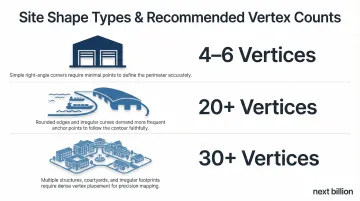
Minimum vertex guidelines:
- Rectangular warehouse: 4-6 vertices
- Curved terminal or port: 20+ vertices
- Complex multi-building campus: 30+ vertices
Note: Amazon Location Service restricts polygons to 1,000 total vertices per geofence, while other platforms may impose different limits.
Step 4: Configure Zone Metadata and Access Settings
Assign a clear, descriptive name to the zone (e.g., "Chicago Distribution Center — Loading Dock") and categorize it by type:
- Pickup zone
- Restricted area
- Delivery region
- Compliance perimeter
Set visibility and access permissions—determine which vehicle groups, driver groups, or application environments can see and interact with the zone. Optionally assign an expiration date for temporary geofences such as event venues or construction sites.
Step 5: Validate and Activate the Geofence
Before going live, visually verify the polygon overlay against the satellite map. Confirm the boundary accurately covers the intended area and excludes adjacent roads or neighboring properties.
Run these checks before activating:
- Simulate entry and exit events using a test device or staging environment
- Confirm triggers fire correctly for both entry and exit independently
- Review raw GPS track logs to verify device-reported positions fall within the polygon boundary
When Should You Use Polygon Geofencing?
Polygon geofencing is not always the right approach. Circular geofences are faster to create and adequate for open lots, rural distribution points, or any location where a rough boundary is acceptable.
Polygons become necessary when boundary accuracy directly affects operational or compliance outcomes:
- Sites with irregular shapes — airports, seaports, industrial facilities, and multi-building campuses where boundaries follow property lines
- Urban environments where circular geofences would bleed into adjacent businesses or roads, triggering false positives
- Delivery zones that need to match neighborhood or zip-code boundaries tied to actual service areas
- Compliance-sensitive perimeters — customs zones, restricted facilities, or regulated areas requiring legally defensible boundaries
That said, polygons add unnecessary complexity in several situations. If your use case fits any of these, a circle is the better choice:
- Small, isolated points of interest like a single gas station
- Temporary stop locations used for one-off tasks
- Environments where GPS accuracy falls below 10 meters — polygon precision won't help
- Rural or open-area sites with no adjacent interference
What You Need Before Defining Polygon Geofences
Accurate polygon definition depends on reliable source data:
- Access to satellite or aerial map of the site
- Physical address or known center coordinates
- Output format required by the target platform (GeoJSON, WKT, or proprietary coordinate array format)
- Understanding of the site's operational purpose and required precision level
Equipment and System Requirements
Start by confirming your platform and device can support polygon-level precision:
- Verify the geofencing tool or API supports polygon shapes (not all platforms offer polygon creation natively)
- Check the maximum number of vertices allowed per polygon
- Validate coordinate precision requirements
Consumer smartphones typically achieve 4.9-meter radius accuracy under open sky conditions. Commercial fleet trackers deliver 2.0m to 2.5m Circular Error Probable (CEP) accuracy. Aim for devices accurate within 5–10 meters for polygon triggers to fire reliably.
Representative commercial device accuracy:
| Device Model | Horizontal Accuracy | Conditions |
|---|---|---|
| CalAmp LMU-2630MB | ~2.0m CEP | Open Sky (SBAS) |
| Queclink GV300 | < 2.5m CEP | Autonomous |
| Sierra Wireless AirLink RV50X | < 2m (50%), < 5m (90%) | Standard |

Skill and Data Readiness
The skills you need depend on how you're creating the polygon — manually through a map UI or programmatically via API.
For manual creation:
- Basic map navigation skills
- Understanding of how to close a polygon correctly
For API-based creation:
- Familiarity with GeoJSON polygon structure
- Knowledge of coordinate order convention ([longitude, latitude] in GeoJSON vs. [latitude, longitude] in many map UIs)
- Note that swapping coordinate order is one of the most frequent causes of broken polygon shapes
Key Parameters That Affect Polygon Geofence Accuracy
Once a polygon is drawn, its operational performance depends on how several technical parameters are controlled. Getting these wrong leads to missed triggers, phantom alerts, and inaccurate dwell-time reporting. Getting these wrong leads to missed triggers, phantom alerts, and inaccurate dwell-time reporting. Four parameters matter most: vertex count, coordinate precision, buffer zone sizing, and coordinate order.
Vertex Count and Polygon Complexity
Each vertex defines a straight-line segment of the boundary. Too few vertices cause the geofence to cut corners at curves or diagonal edges, leaving parts of the actual site outside the boundary—or pulling in parts of adjacent areas.
The right count depends on the shape you're tracing. A rectangular warehouse needs only 4–6 vertices, while a curved terminal or port boundary may require 20 or more. Most platforms cap this: Amazon Location Service restricts polygons to 1,000 vertices, and memory-constrained systems degrade noticeably with highly complex geometries.
Coordinate Precision and Datum
Coordinates expressed to fewer decimal places represent coarser location. At the equator, each decimal place maps to a specific ground distance:
| Decimal Places | Approximate Accuracy at Equator |
|---|---|
| 4 | ~11.1 m |
| 5 | ~1.11 m |
| 6 | ~11 cm |
| 7 | ~1 cm |
Mapbox recommends limiting coordinate precision to 6 decimal places, providing roughly 10 cm of precision—well within commercial GPS system limits. Exceeding 6 decimal places inflates GeoJSON file sizes and slows rendering without practical accuracy improvement.
Match coordinates to the same geodetic datum (typically WGS84) used by the GPS devices interacting with the geofence. RFC 7946 explicitly states that the coordinate reference system for all GeoJSON coordinates is WGS 84.
Low-precision coordinates cause polygon edges to snap to the wrong location—particularly in dense urban areas where site boundaries are measured in meters.
Buffer Zone / Offset Distance
Different systems use different conventions. GeoJSON requires longitude, latitude order, while many map UIs and telematics platforms use latitude, longitude. GeoJSON also specifies counterclockwise winding (the vertex ordering direction) for outer rings.
This mismatch is one of the most common integration errors in geofence development. Mapping libraries like Leaflet use latitude, longitude by default, whereas GeoJSON strictly requires longitude, latitude. Developers must explicitly reverse coordinate arrays when passing data between systems.
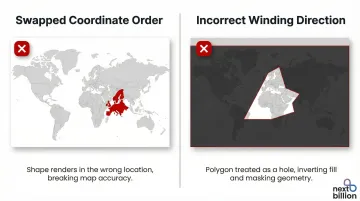
The consequences of getting this wrong are immediate:
- Swapped coordinate order: Polygon appears on the wrong side of the globe or fails API validation entirely
- Incorrect winding direction: Polygon is treated as a hole instead of a filled boundary
Common Mistakes and How to Troubleshoot Them
Unclosed Polygons
This happens when a user stops placing vertices before returning to the start, or when the final coordinate pair in an API input doesn't match the first — particularly common when building coordinate arrays manually.
To fix:
- Confirm the first and last coordinate pairs in the array are identical
- Run the polygon through a GeoJSON validator or check the API error response — most platforms surface an explicit error when the ring is unclosed
Coordinates in Wrong Order (Lat/Lng vs. Lng/Lat)
This occurs when coordinates copied from one system (for example, a mapping tool returning lat, lng) get pasted into an API expecting GeoJSON format (lng, lat), or vice versa. The polygon renders far from the intended site — sometimes in a different country or ocean.
To fix:
- Cross-reference the rendered polygon against a known landmark near the site
- If the polygon is wildly off, the coordinate order is reversed — swap all pairs in the array
Geofence Not Triggering on Known Entry
GPS location drift is the most common culprit here — the device's reported position can sit outside the polygon boundary even when the vehicle is physically inside. Tracing the boundary too tightly against the site's edge compounds the problem.
To fix:
- Pull the raw GPS track logs and check where reported positions fall relative to the polygon
- If positions consistently land just outside the boundary, expand the polygon by 10–15 meters or apply an outward buffer in the platform's zone settings
Frequently Asked Questions
What is polygon geofencing?
Polygon geofencing uses a custom-shaped virtual boundary, defined by a series of coordinate points, to monitor when assets, vehicles, or devices enter or exit a specific geographic area. It offers greater precision than circular geofences for irregular sites like warehouses, terminals, or service territories.
What is a geofence software?
Geofence software is a platform or API that lets businesses create, manage, and monitor virtual geographic boundaries. It automatically triggers alerts or actions when tracked devices cross those boundaries.
What is the polygon feature in GIS?
In GIS, a polygon is a closed shape defined by three or more vertices connected by straight-line segments, used to represent areas like parcels, zones, or regions. Geofence polygons apply this concept to real-time location tracking and operational monitoring.
When should I use a polygon geofence instead of a circular one?
Use polygon geofences when the target location has an irregular shape a circle cannot accurately represent—a warehouse with an L-shaped footprint or a delivery zone following street boundaries, for example. Circular geofences work well for simple, isolated point locations.
How many vertices should a geofence polygon have?
The number depends on the site's shape complexity—a rectangular building may need only 4–6 vertices, while a curved or irregular perimeter may require 20 or more. Check your platform's vertex limit and prioritize placing extra vertices at curves and corners where straight-line approximation loses accuracy.